
Introduction
Welcome to All Out Golf! Here you will find all the important information for a seamless and enjoyable first visit to our private golf simulator.
The facility is not checked or cleaned after every single reservation. Therefore, we ask all guests:
«Please leave the facility as you would like to find it yourself!»
1. Access & AirKey
Access to All Out Golf is completely independent via your smartphone. Here is the step-by-step guide:
- 1As a first-time customer, you will receive an SMS from our access system «AirKey» after payment.
- 2Open the link in the SMS to install the free AirKey App on your smartphone.
- 3Click the link in the SMS once more – the app will configure your access automatically.
- 4You will now see your booking in the app under the «Permissions» (Berechtigungen) menu:
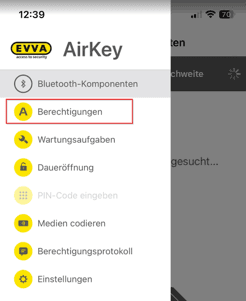
AirKey App: Menu «Berechtigungen» shows your active access window
- 5When on-site: Under «Bluetooth-Komponenten» in the app, locate the All Out Golf wall reader and click the yellow dot to unlock the door.
Have you changed your phone or reinstalled the app? You can reset your AirKey access anytime yourself. You can do this either directly via the reset link in your booking confirmation email, or in your customer portal under My Account.
2. The Golf Simulator
Our simulator is equipped with an ultra-precise Uneekor Eye XO 2 high-speed camera system. You can hit all shots including Driver and Putter. Please note the following:
- •Hitting Area: The ball must be placed within the marked hitting area (see diagram below). When placed correctly, the system confirms with a chime and the overhead sensor lights up.
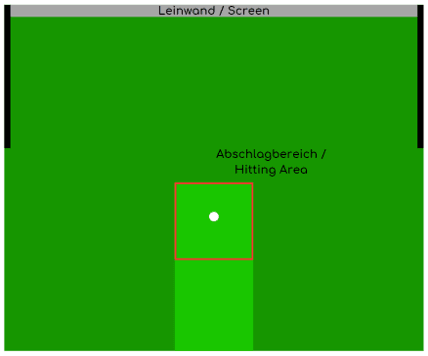
Hitting Area: Position your ball in the designated green zone before swinging
- •Golf Balls: Please bring your own golf balls (clean, white, unmarked) or purchase balls on-site.
- •Tees: Tees are available for you directly in the bay.
- •Clean Shoes Only: Please only enter the simulator turf with clean golf or athletic shoes (no street dirt or outdoor cleats).
- •Projector: The projector is turned on using the white remote control.
3. GSPro Software & Game Modes
We use the industry-leading simulator software «GSPro». The software should already be open on the main welcome screen:
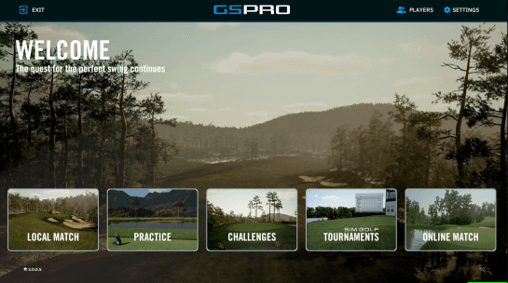
GSPro Main Menu: Select your preferred game mode
Available Game Modes:
Driving Range, On-Course Practice & Skills Test to dial in your yardages.
Play 9 or 18 holes on legendary golf courses. Tick «Show all Courses» to download any course.
Fun challenges to sharpen your precision and compete with friends.
Join events and compete on the Simulator Golf Tour (SGT).
Play real-time online matches against golfers worldwide.
If the program was accidentally closed or is not open, you can find instructions for restarting it here: GSPro Restart Guide
4. Snacks & Refreshments
Cold drinks and snacks are available at all times in the lounge. The price list is displayed right on-site. You can easily settle your payment using the SumUp payment terminal.
5. Extend Your Playtime
Not done playing yet? If no other guest has booked the simulator after your session, you can easily extend your reservation:
6. End of Session Checklist
When your reserved time comes to an end, please follow this checklist:
- Return balls & tees: Collect all balls and place tees back in the cup.
- End Round: End your round via the top right menu (4 dots > End Round) and return to the GSPro main menu.
- Keep GSPro open: Do not close the software window.
- Turn off projector: Switch off the projector with the white remote control.
- Recycle waste: Dispose of trash, PET bottles and aluminum cans in the bins provided.
- Turn off lights: Switch off the lights when leaving.
Questions or Need Assistance?
We are here for you so nothing stands in the way of a great round of golf.